



Top Provider Questions – myCGS
Click on an item to expand or Show All / Close All
System Requirements
- What are the minimum system requirements?
-
Please review System Requirements in the myCGS User Manual.
-
- Why did I receive this message: “This webpage cannot be displayed.”?
-
Please check your browser settings. Go to Internet Options, select the Advanced tab, and make sure TLS 1.2 or higher is selected.
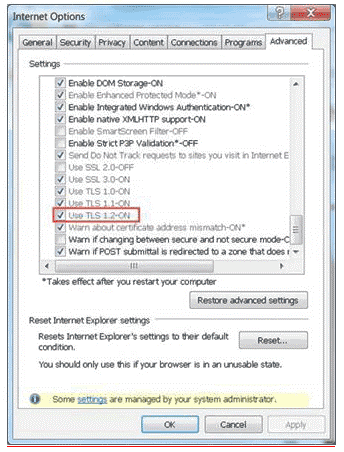
-
- Can I increase the speed?
-
For optimal performance, please make sure:
- Your system complies with the system requirements.
- You only use 1 internet browser tab to access the portal. Currently, myCGS doesn’t support more than 1 portal session in multiple browser tabs.
-
Registration
Passwords
Claims
- How do I check claim status?
-
- Go to Claims.
- Choose a search option:
- Medicare ID & Date of Service
- Claim Number
- Click Submit.
- Click on a claim number to view more details.
See the myCGS User Manual
 for complete details.
-
- Can I correct claims?
-
Part B users can correct front end edits in real time during the data entry process. See the myCGS User Manual
for complete details.
-
Remittance Advice
- How do I access a remittance advice?
-
- Go to Remit.
- Choose a search option:
- Check Number
- Type a check number.
- Paid Date
- Type (MM/DD/CCYY) or use the calendar to select a paid date.
- Last 30 Days
- Click the radio button.
- Select Specific Date Range
- Click the radio button.
- Type (MM/DD/CCYY) or use the calendar to select a beginning date.
- The end date defaults to 45 days from the beginning date. You can change to an earlier date but not a later date.
- Check Number
- Click Submit.
See the myCGS User Manual
for complete details.
-
- How do I print a remittance advice?
-
Your remittance advice displays in PDF format. Click Print (icon in the menu bar).
If you encounter a problem, check your Internet browser settings, download Adobe Reader
 software at no cost, or review the system requirements.
-
Eligibility
- Why didn’t I receive results for the beneficiary information I entered?
-
The eligibility screens contain Protected Health Information (PHI). To ensure we protect our Medicare beneficiaries’ privacy, the information you enter on the inquiry screen must match the information on the beneficiary’s eligibility file.
Note: CGS can’t release eligibility inquiry or detail information via portal, website, or phone. Please use another eligibility system, check your files, or contact the patient or representative to verify and reenter the required fields.
-
- How can I get a patient’s Medicare number?
-
- Go to MBI Lookup.
- Type the patient’s first/last name, Social Security Number, and date of birth.
- Click Submit.
See the myCGS User Manual
for complete details.Note: CGS can’t release the required field information or the MBI via portal, website, or phone. Please use another eligibility system, check your files, or contact the patient or representative to verify the required field information.
-
Financial
- Can I access more than the last 3 checks issued?
-
No, this option only displays the last 3 paid dates and amounts.
-
- How do I request an immediate offset (eOffset)?
-
- Go to Financial.
- Select Financial Forms.
- Select eOffset.
- Choose an option:
- Provider Level Offset (for all current and future overpayments)
- Demand Letter Offset (for a single claim/demand letter)
- Stop Provider Level Previously Requested (for future overpayments)
- Click Submit.
- Review the confirmation; click Accept or OK.
- See the myCGS User Manual for additional steps based on the option you select.
Note: If you select Demand Letter Offset, type the numeric portion of the demand letter number only. If you receive an error message, please contact the EDI Help Desk.
-
Messages & Green Mail
- What is green mail?
-
Green mail is the term we use for the correspondence you receive in your myCGS message inbox.
-
- What will I receive as green mail?
-
When you submit a myCGS transaction that requires a CGS response, our response is sent via green mail (i.e., to your myCGS message inbox) only.
-
- How do I access messages?
-
See the myCGS User Manual
for step-by-step instructions. If you can’t access the Messages tab, send a request to your Provider Administrator.
-
- Will I receive notification when a message is available?
-
Your Provider Administrator receives an email notification when a message is available in your myCGS message inbox.
-
- How long are messages available?
-
Messages are available in the myCGS message inbox for 60 days (if you don’t delete or archive). After 60 days, messages automatically move to Archive Messages and remain available for 365 days.
-
- Can I get a copy of a letter that’s no longer available?
-
Yes, please call Customer Service to request a copy.
-
Forms
- How do I attach documents?
-
- Click Choose File.
- Locate and select the document(s).
- Attach up to 10 PDF documents (up to 40 MB each; 150 MB total).
-
- Can I use a different submission method for Medical Review (MR) Additional Documentation Requests (ADRs) and appeals?
-
Acceptable submission methods include: myCGS, Electronic Submission of Medical Documentation (esMD)
, fax (MR only), or mail.Reasons to use myCGS: identify ADRs on the MR Dashboard, electronic submission, get confirmation, check status.
-
 Join Electronic Mailing List
 Print
Print Bookmark
 Facebook
 YouTube
 LinkedIn
 CGS Medicare Mobile App