


DME Reopenings Request Form Instructions
Use these steps to fill out the DME Reopening Request Form. You must mail the form or submit your request through the myCGS Web Portal.
Mail the form to:
| Jurisdiction B CGS – Jurisdiction B Written Reopenings PO Box 20007 Nashville, TN 37202 |
Jurisdiction C |
- Complete the Header of the form:

- Select the Jurisdiction.
- Complete the Supplier Information section:
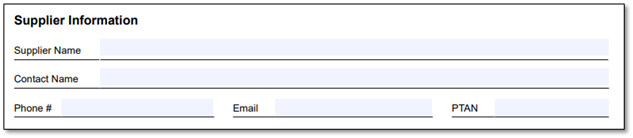
- Identify the Supplier Name.
- Enter the Contact Name.
- Enter the Phone Number, Email Address, and PTAN.
- Complete the Beneficiary Information section:

- Enter the Beneficiary's Name.
- Enter the Beneficiary's Medicare ID.
- To avoid processing delays, please verify that the Medicare ID is correct.
- Complete the Adjustment Details section of the form:
- Enter the CCN.
- Choose the Reason from the dropdown.
The remaining fields will be populated according to the Reason. To avoid processing delays, please follow the steps exactly. For additional information about the section, please see the field descriptions below.
CCN – Claim Control Number
Reason – The reason for the Reopening request
DOS From / DOS To – Dates of Service
Line # - Claim Line
Action – The action that is being requested
New Value – the value that should be added or replaced
Position – the position of the modifier or diagnosis code related to the request
▶ When the Reason is ‘Billed Amount':

- Choose ‘Replace' in the Action dropdown.
- Identify the Line from the dropdown.
- Enter the billed amount in the New Value column in the XXXX.XX format.
- Leave the Position, DOS From and DOS To blank.
▶ When the Reason is ‘Date of Service':

- Choose ‘Replace' in the Action dropdown
- Identify the Claim Line from the dropdown.
- Add the Dates of Service in the DOS From and DOS To fields in the following format: MM-DD-YY
- Leave the Position and New Value blank.
▶ When the Reason is ‘Header Diagnosis Codes':

- Choose ‘Add', ‘Replace', or ‘Remove' in the Action dropdown
- Identify the Position from the dropdown.
- Enter the new diagnosis code in the New Value column.
- Leave the Line, DOS From and DOS To blank.
▶ When the Reason is ‘Line Diagnosis Code':

- Choose ‘Add', ‘Replace', or ‘Remove' in the Action dropdown
- Identify the Claim Line and Position from the dropdowns.
- Enter the new diagnosis code in the New Value column.
- Leave the DOS From and DOS To blank.
▶ When the Reason is ‘Modifier':

- Choose ‘Add', Replace' or ‘Remove' in the Action dropdown
- Identify the Claim Line from the dropdowns.
- Enter the new modifier in the New Value column.
- Leave Position, DOS From and DOS To blank.
▶ When the Reason is ‘MSP':
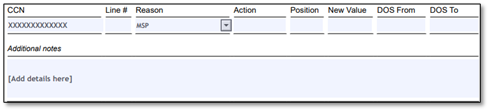
- Leave the Action, Line, Position, New Value, DOS From and DOS To blank.
- Provide details about your request in the Additional Notes text box.
▶ When the Reason is ‘MSP – Reprocess Primary':

- Leave the Action, Line, Position, New Value, DOS From and DOS To blank.
▶ When the Reason is ‘Other':
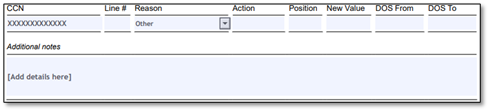
- Leave the Action, Line, Position, New Value, DOS From and DOS To blank.
- Provide details about your request in the Additional Notes text box.
▶ When the Reason is ‘Place of Service':

- Choose ‘Replace' in the Action dropdown
- Identify the Claim Line in the dropdown field
- Enter the new Place of Service in the New Value column.
- Leave the Position, DOS From and DOS To blank.
▶ When the Reason is ‘Procedure Codes':

- Choose ‘Replace' in the Action dropdown
- Identify the Line in the dropdown field
- Enter the new Procedure Code in the New Value column in the format XXXXX.
- Leave the Position, DOS From and DOS To blank.
▶ When the Reason is ‘Ordering/Referring NPI':

- Choose ‘Replace' in the Action dropdown
- Identify the Claim Line in the dropdown field
- Enter the Ordering/Referring NPI value in the New Value column.
- Leave the Position, DOS From and DOS To blank.
▶ When the Reason is ‘Number of Services':

- Choose ‘Replace' in the Action dropdown
- Identify the Claim Line in the dropdown field
- Enter the new number of services in the New Value column.
- Leave the Position, DOS From and DOS To blank.
 Join Electronic Mailing List
 Print
Print Bookmark
 Facebook
 YouTube
 LinkedIn
 CGS Medicare Mobile App